

This post is for people interested in setting up an instance of SQL Server 2025 Enterprise Developer Edition for personal use. I caution those interested in configuring an instance of SQL Server 2025 Enterprise for production purposes: You should not use Developer Edition because it’s not for production workloads by design and according to the EULA.
In the previous post – titled Download SQL Server 2025 Enterprise Developer Edition – I shared how one might download SQL Server 2025 Enterprise Developer Edition, which is free.
Installing SQL Server 2025
Once you have downloaded the installation media for SQL Server 2025, you may mount the ISO file:
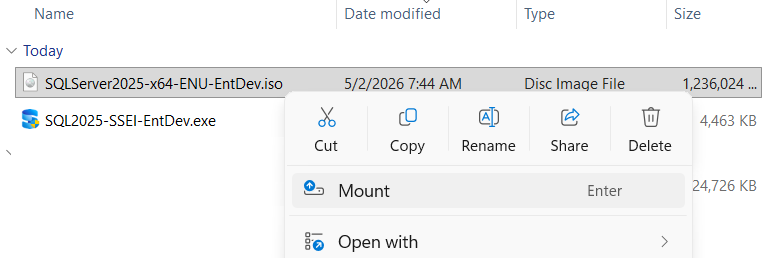
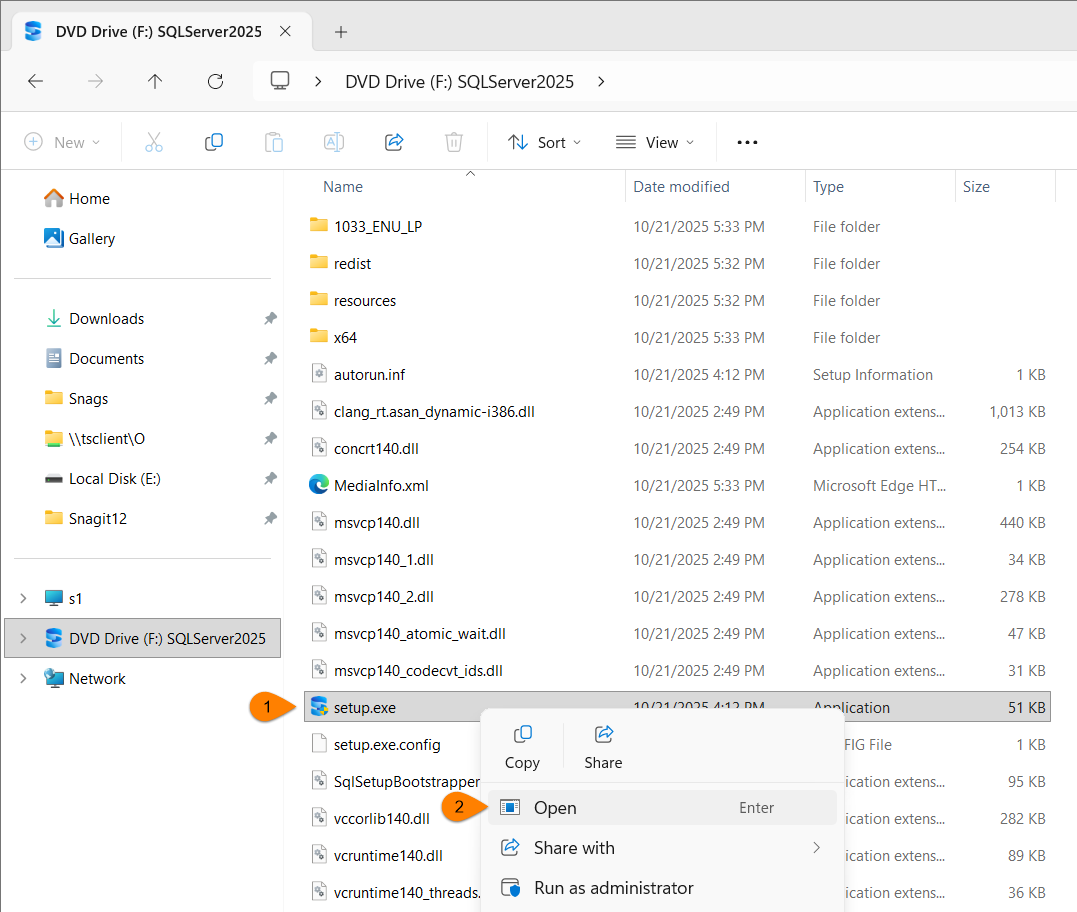
Once mounted, the contents of the ISO file appear as a local drive on your server. To start the installation, double-click the setup file, or:
- Right-click setup file
- Click Open:
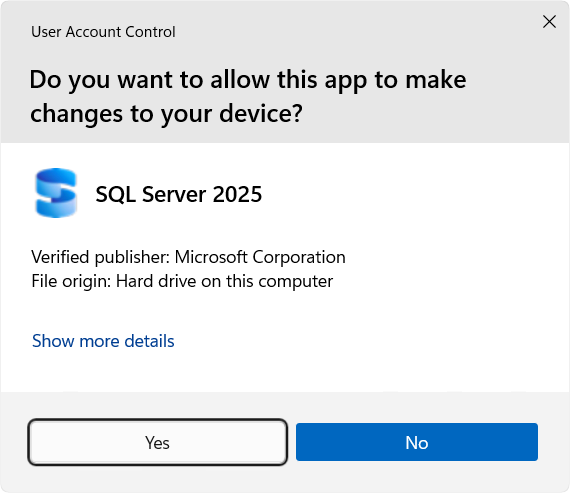
When prompted by User Access Control, click the Yes button as before:
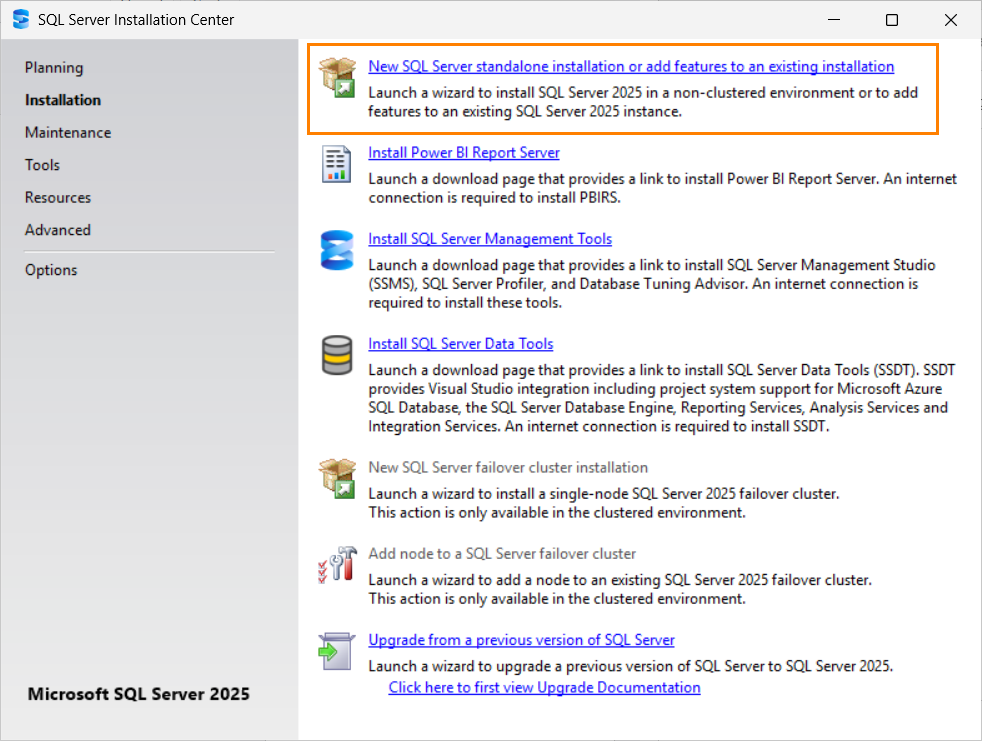
When the SQL Server Installation Center opens, click the Installation page, and then click the tile labeled “New SQL Server stand-alone or add features to an existing installation”:
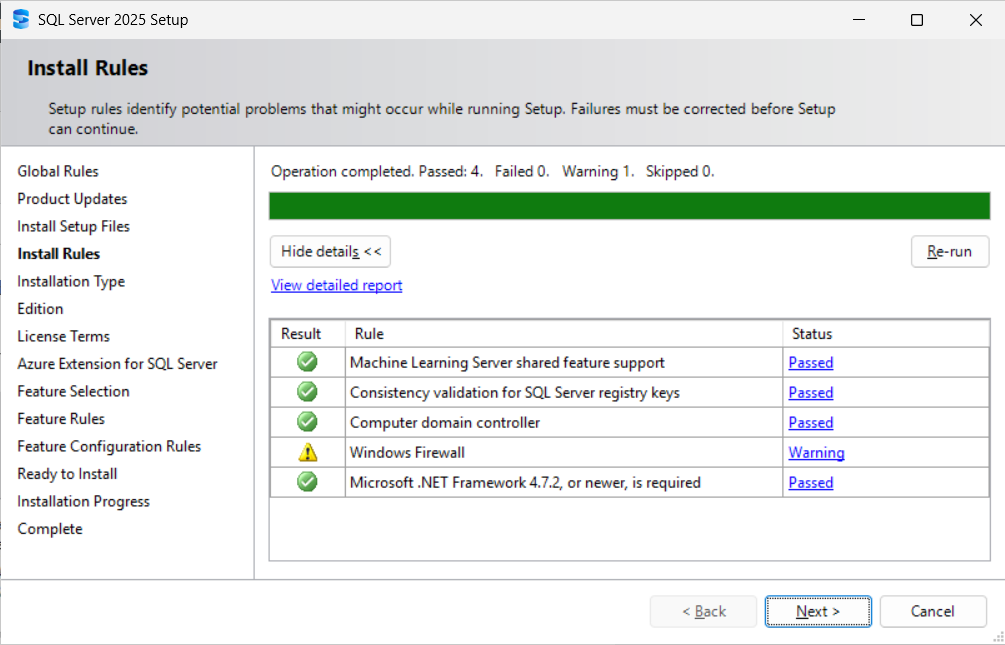
SQL Server 2025 Setup next displays the Install Rules page.
I remind you, Dear Reader, that I am not a DBA. Nor am I a security professional. If these warnings are deemed “bad” according to either a DBA or security professional you know, please defer to their judgment on the matter.
Since I am configuring a database instance on my personal laptop for test and exploration purposes, I ignore the Windows Firewall warning and click the Next button:
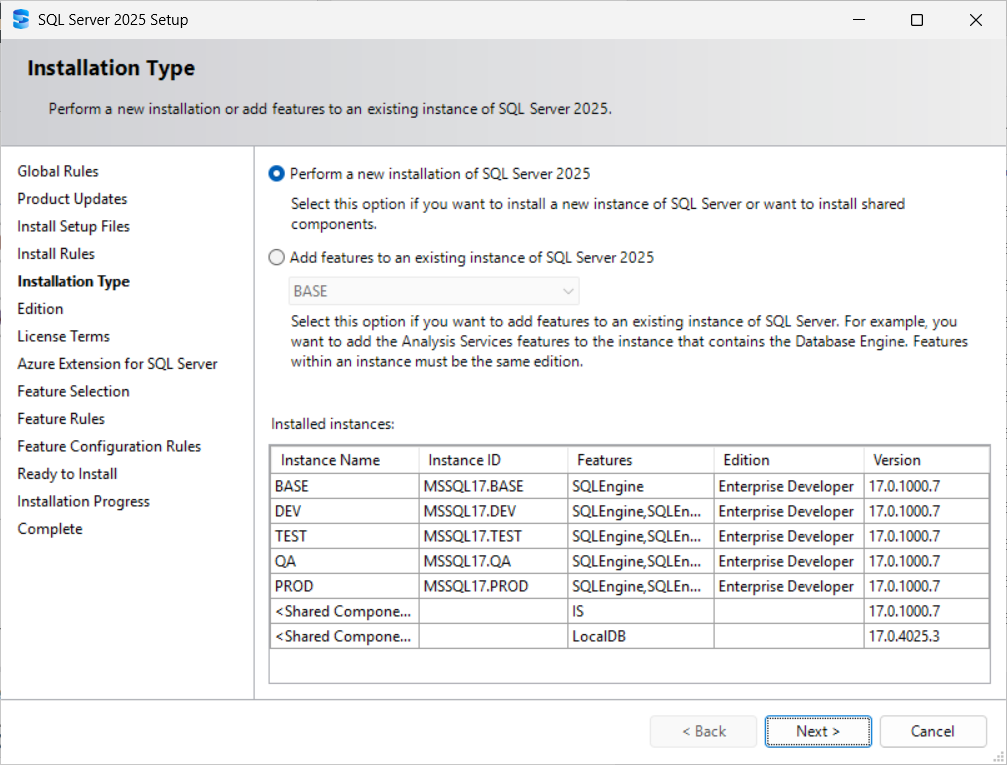
SQL Server 2025 Setup next displays the Installation type page. I select the “Perform a new installation of SQL Server 2025” option and then click the Next button:
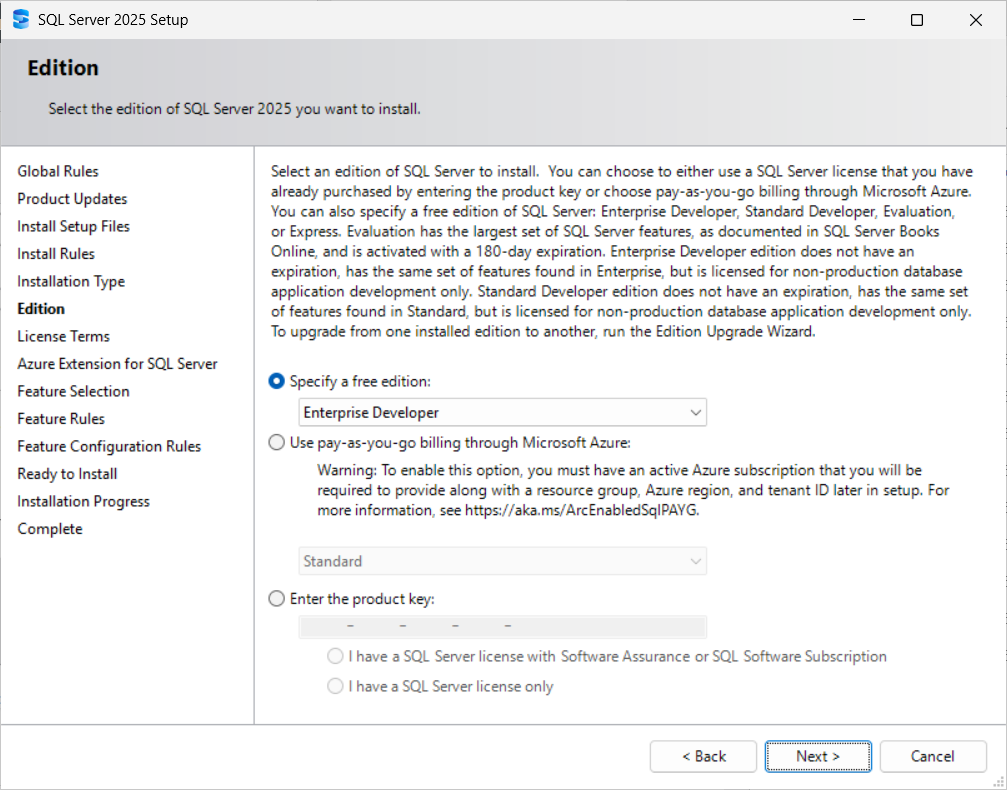
SQL Server 2025 Setup next displays the Edition page. I click the “Specify a free edition” option, select “Enterprise Developer,” and then click the Next button:
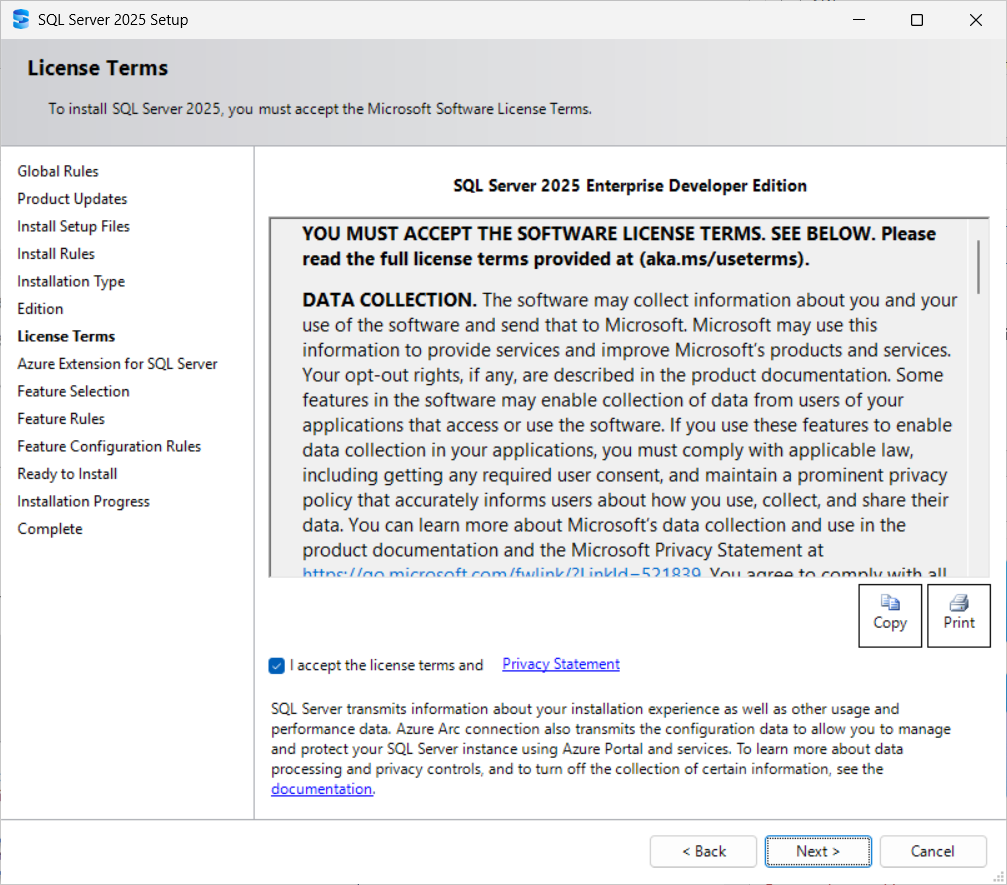
SQL Server 2025 Setup next displays the License Terms page. I check the “I accept the license terms and Privacy Statement” checkbox (You read the license terms and Privacy Statement, didn’t you?) and then click the Next button:
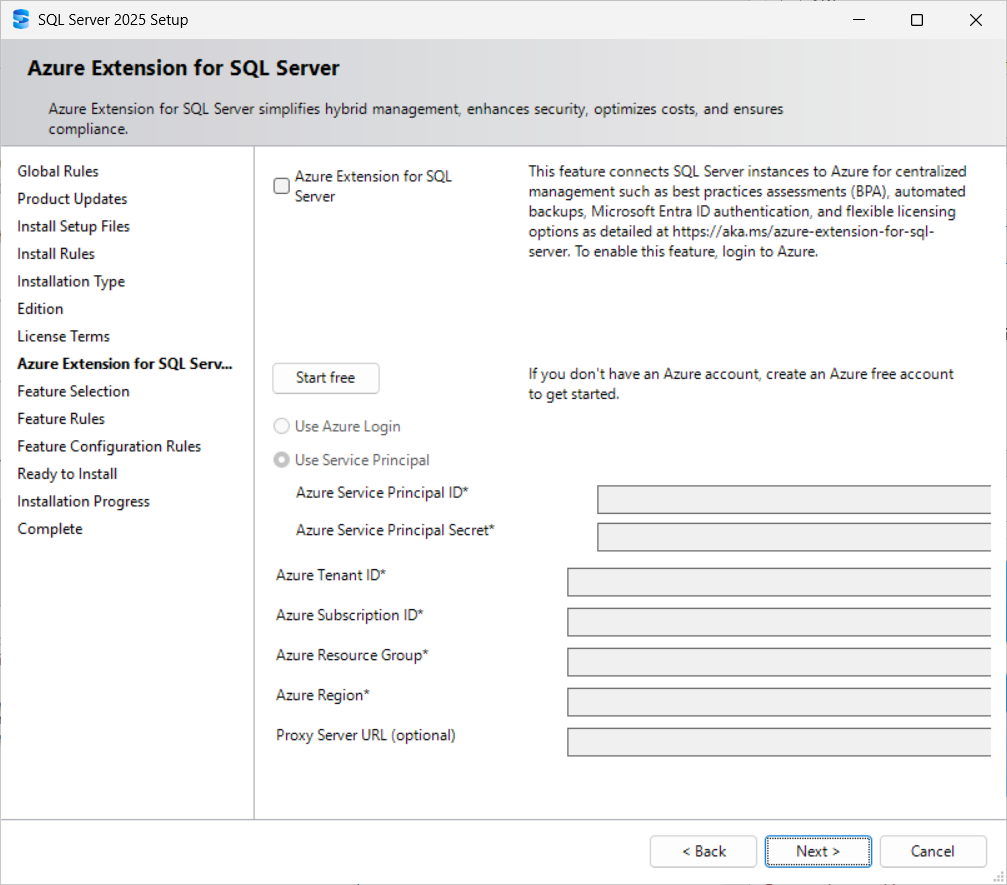
The next page allows you to configure the Azure Extension for SQL Server. Since I am configuring an on-premises instance of SQL Server 2025 Enterprise Developer Edition, I un-check the checked (by default) “Azure Extension for SQL Server” checkbox:
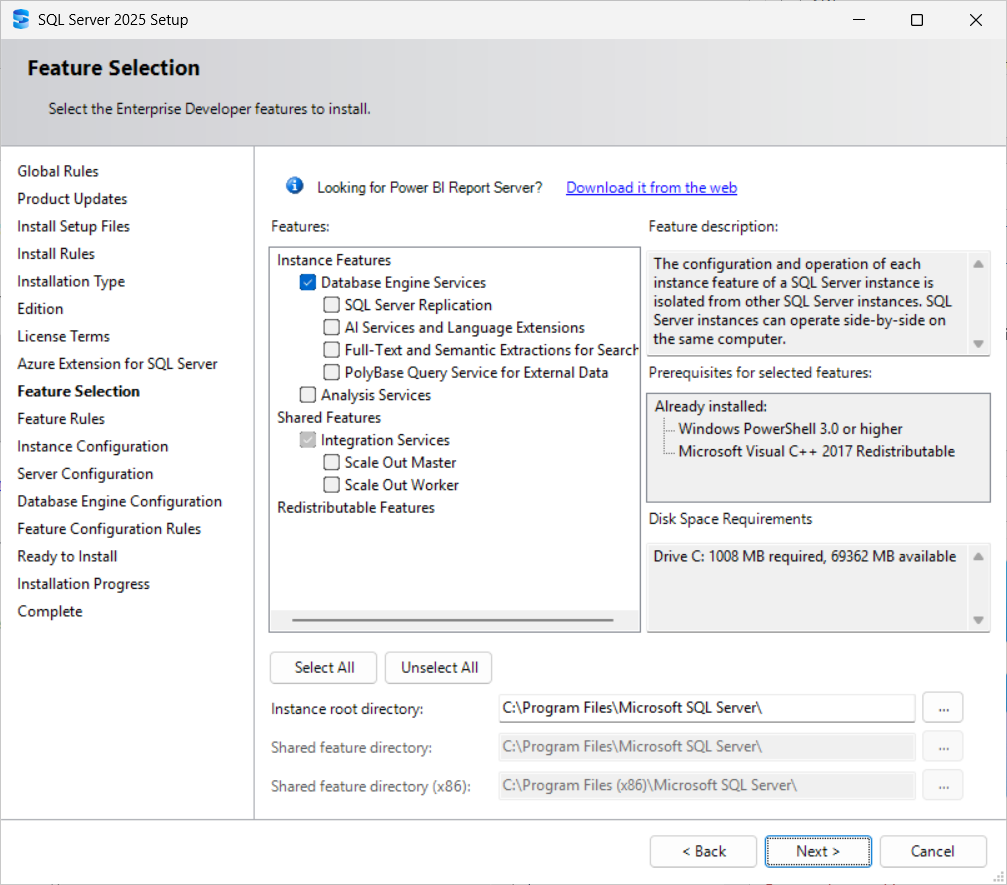
The Feature Selection page is next displayed by SQL Server 2025 Setup. For this instance, I configure only the database engine. (During an earlier setup execution, I configured Integration Services, the Shared feature directory, and the Shared feature directory (x86):
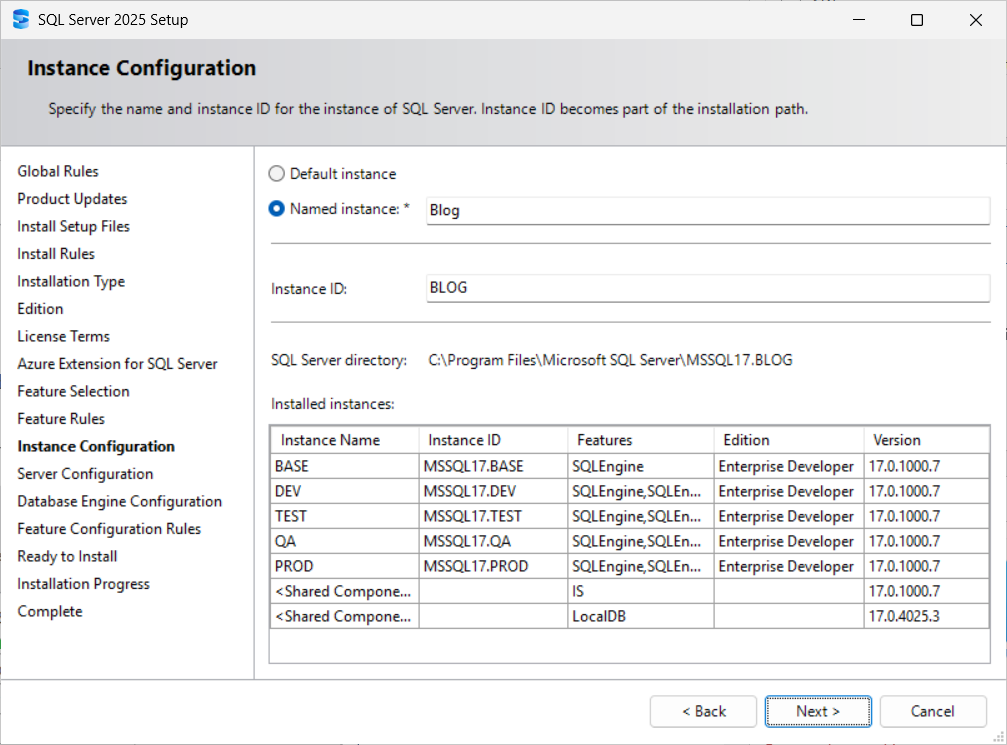
These days, I supply a name for my SQL Server instances, and then click the Next button to proceed:
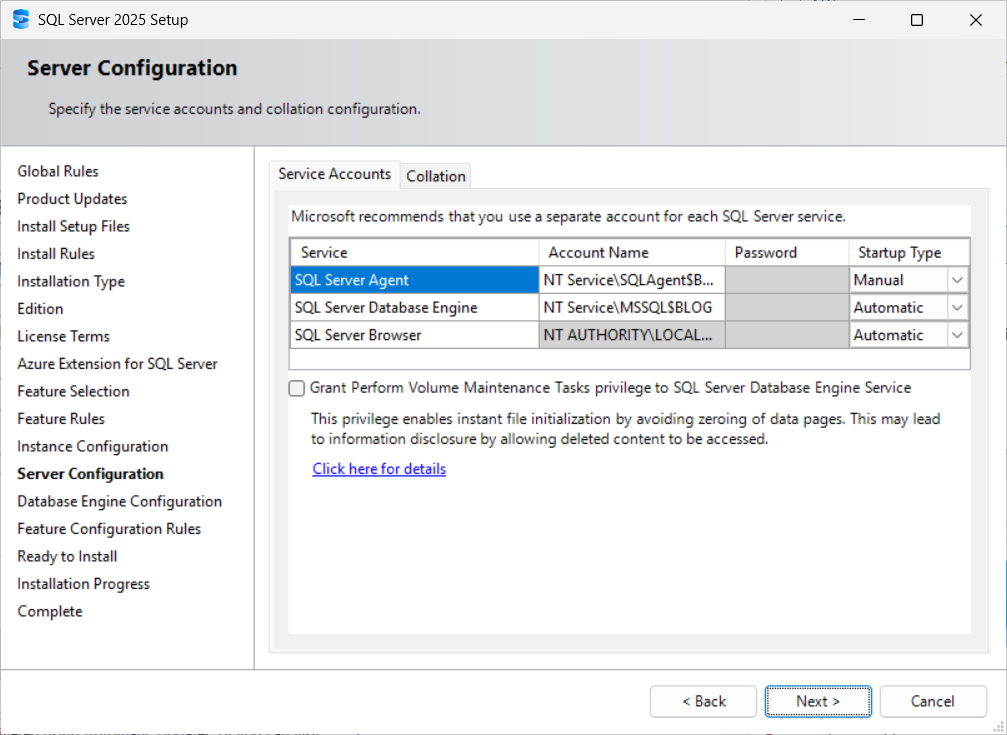
The Server Configuration page is displayed next by SQL Server 2025 Setup. I accept these defaults and click the Next button to continue:
SQL Server 2025 Setup next displays the Database Engine Configuration page. I configure Mixed Mode authentication, supply a password (twice), and click the Add Current User button before clicking Next to proceed:
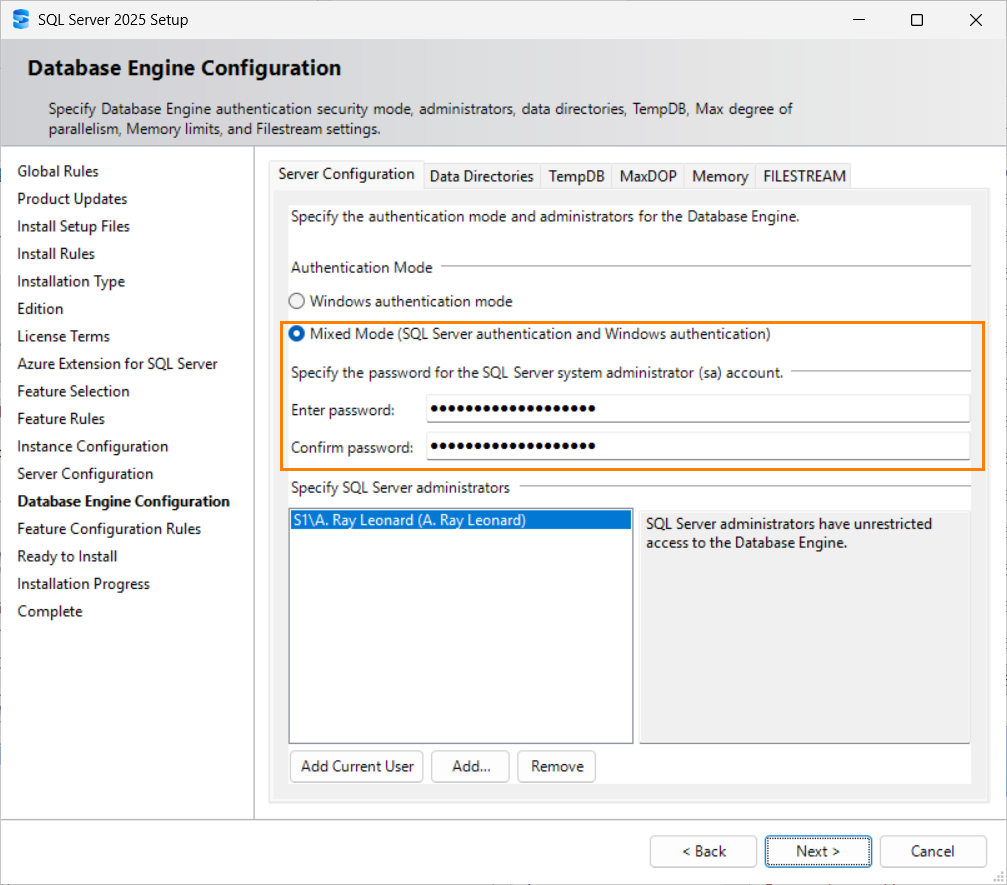
Note: I prefer Mixed Mode for SQL Server Authentication. I am not a DBA, nor am I a security professional . If a DBA or security professional disagrees with me, please listen to them.
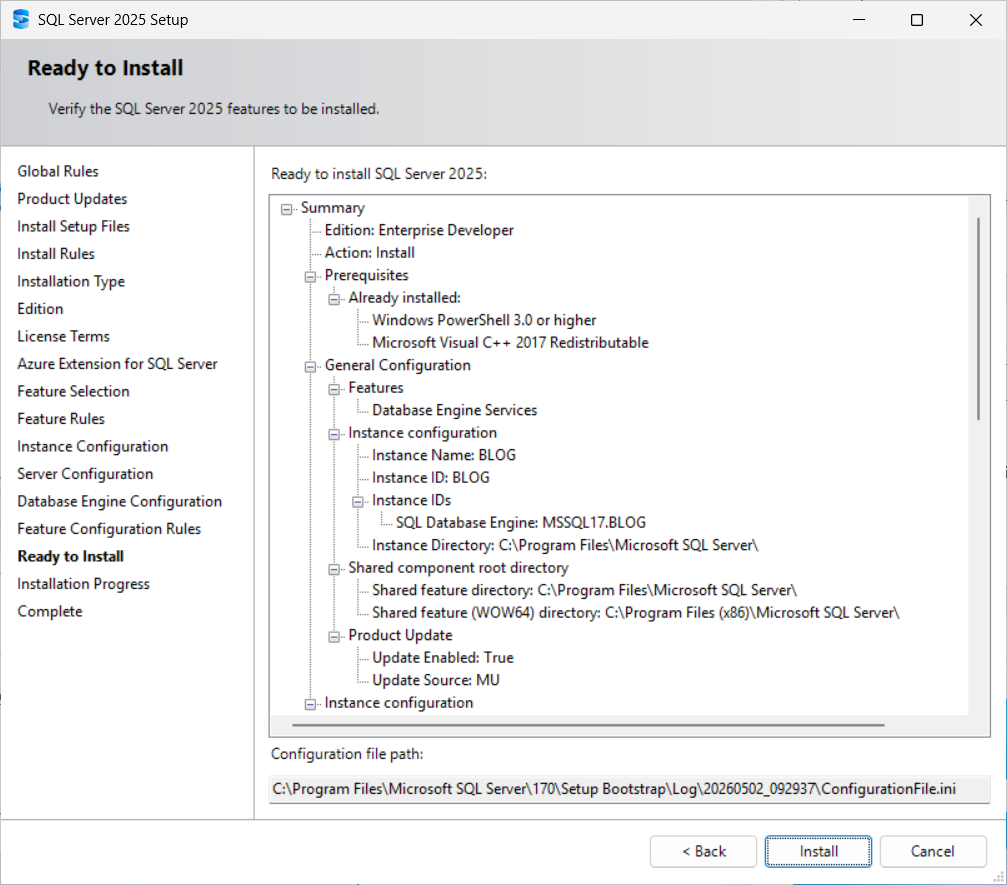
SQL Server 2025 Setup next displays a list of configuration options. Click the Back button to make changes, and then click the Install button to proceed with the installation:
Once the installation is complete, SQL Server 2025 Setup displays a summary. If all goes as planned, the installation should succeed:
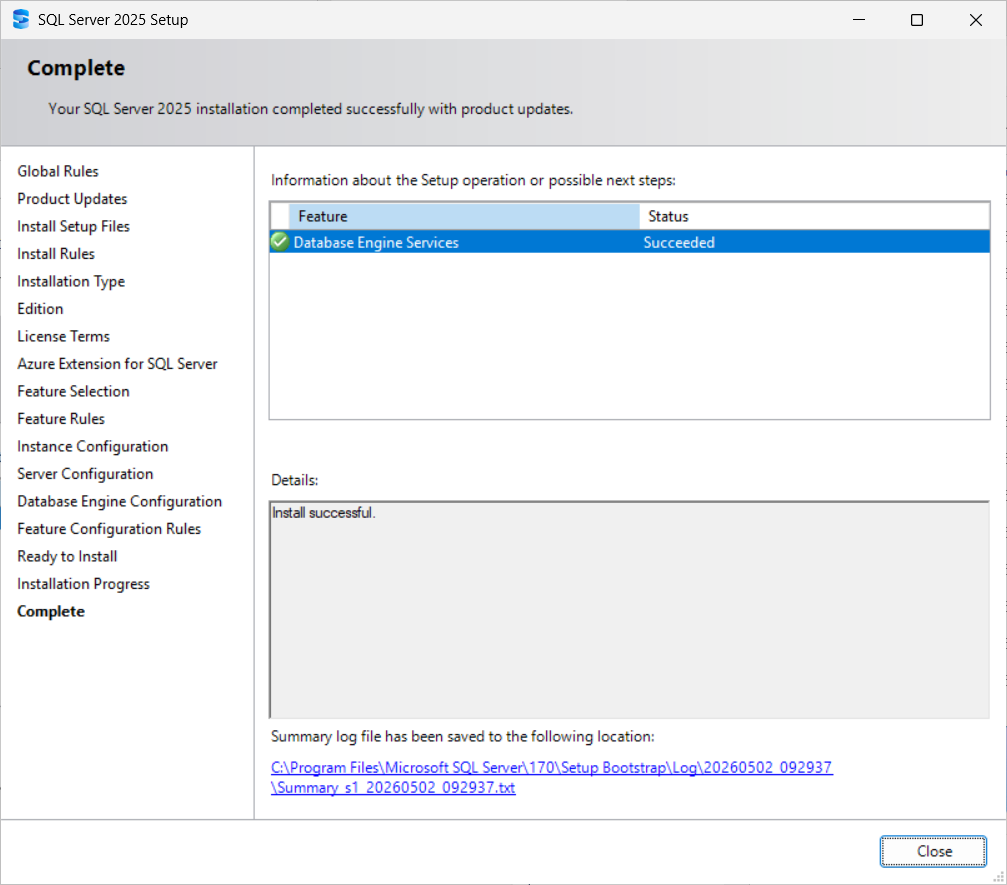
Click the Close button.
Conclusion
This post is part of a series. The landing page for the series is found here (andyleonard.blog/install-sql-2025).
Need Help Implementing Your Enterprise Data Warehouse?

Enterprise Data & Analytics offers comprehensive Data Warehouse, ETL, SSIS, and Azure Data Factory knowledge, experience, and success to your enterprise. We engage in three phases:
- Training – Enterprise Data & Analytics offers enterprise-scale experience-based training, sharing knowledge from experience with one person wearing all the hats to leading dozens of developers on enterprise teams.
- Partnering – Enterprise Data & Analytics team members join your enterprise team members at the developer, project manager, and developer manager levels to shepherd (freshly-trained) team members as we – together – apply data integration patterns to your enterprise data warehouse solution.
- Sustaining – After the code is implemented, tested, documented, and signed-off; Enterprise Data & Analytics team members stand ready to support your enterprise data warehouse team in the event of a disaster, re-join your team to jumpstart the next version, or merely to answer a question.
Contact us today!

Comments