
The Data Integration Lifecycle Management Suite (DILM Suite) is a collection of tools designed to reduce the friction of managing SQL Server Integration Services (SSIS) across its lifecycle. The SSIS Framework is a core element of DILM Suite.
About DILM Suite
DILM Suite helps enterprise data engineers and data teams compare, package, deploy, and maintain SSIS solutions with greater consistency, visibility, and control by replacing manual, error-prone processes with more repeatable workflows. DILM Suite supports a more disciplined and supportable approach to SSIS operations, governance, and DevOps.
About SSIS Framework
DILM Suite’s SSIS Framework is designed to orchestrate enterprise data engineering / integration using SSIS. An SSIS Application is a collection of SSIS Application Packages configured to execute in a specific order. An SSIS application package is built from an SSIS Package deployed to an SSIS Catalog.
SSIS Framework Manager surfaces a user-friendly, graphical interface for configuring SSIS applications.
In this post, I show you how to use SSIS Framework Manager to build an SSIS Application by:
- Creating an SSIS application
- Adding SSIS application packages to the SSIS application
- Ordering the execution of the SSIS application packages
Create an SSIS Application
To begin:
- Click the New button
- Type the name of your new SSIS application:
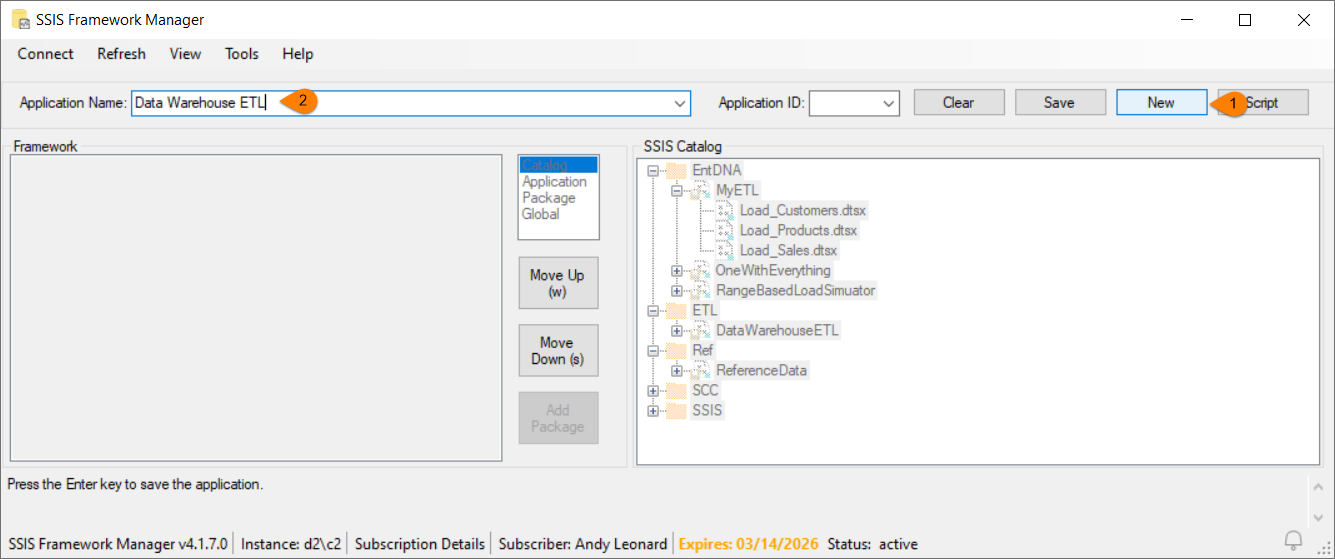
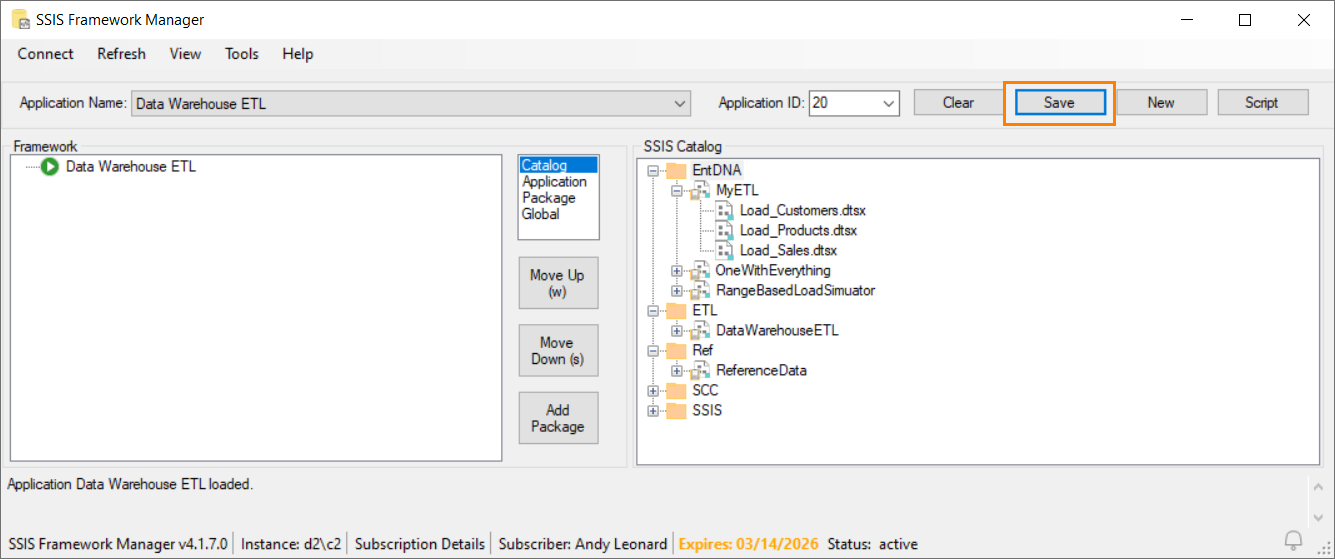
Click the Save button or press the Enter key to save the new SSIS application:
Add SSIS Application Packages to an SSIS Application
There are a number of ways to add SSIS application packages to an SSIS application.
- You can drag and drop an individual SSIS Catalog Package from the SSIS Catalog treeview on the right to the SSIS Framework treeview on the left
- You can select an individual SSIS Catalog Package from the SSIS Catalog treeview on the right and click the Add Package button between the treeviews
- You can drag and drop an SSIS Catalog Project from the SSIS Catalog treeview on the right to the SSIS Framework treeview on the left
I demonstrate dragging and dropping an SSIS project in the two screenshots that follow:
- Select an SSIS Catalog Project from the SSIS Catalog treeview on the right
- Drag the SSIS Catalog Project to the SSIS Framework treeview on the left
- Drop the SSIS Catalog Project onto the SSIS Framework treeview on the left:
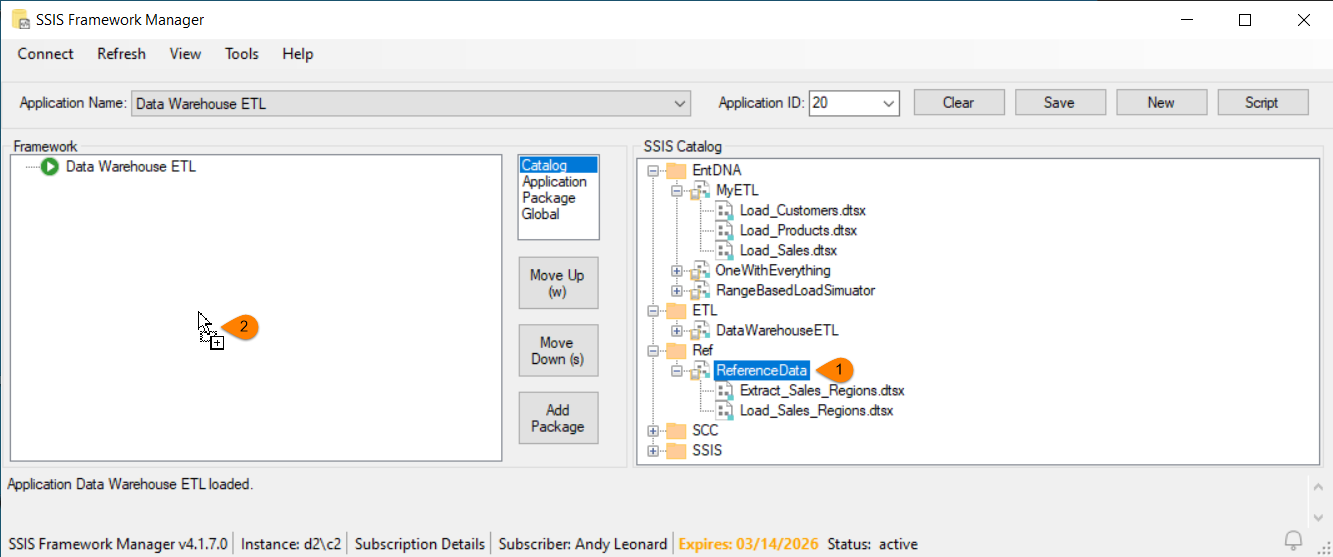
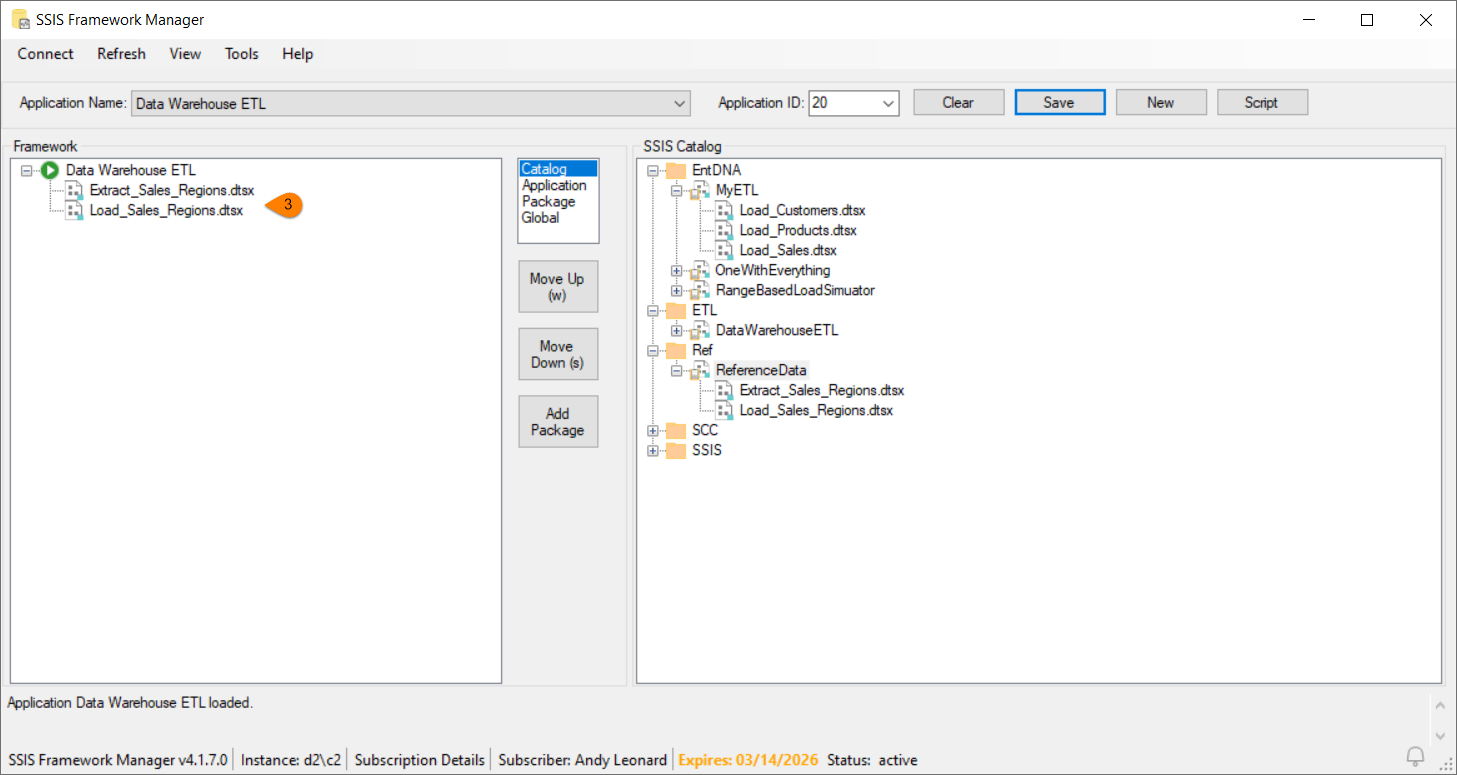
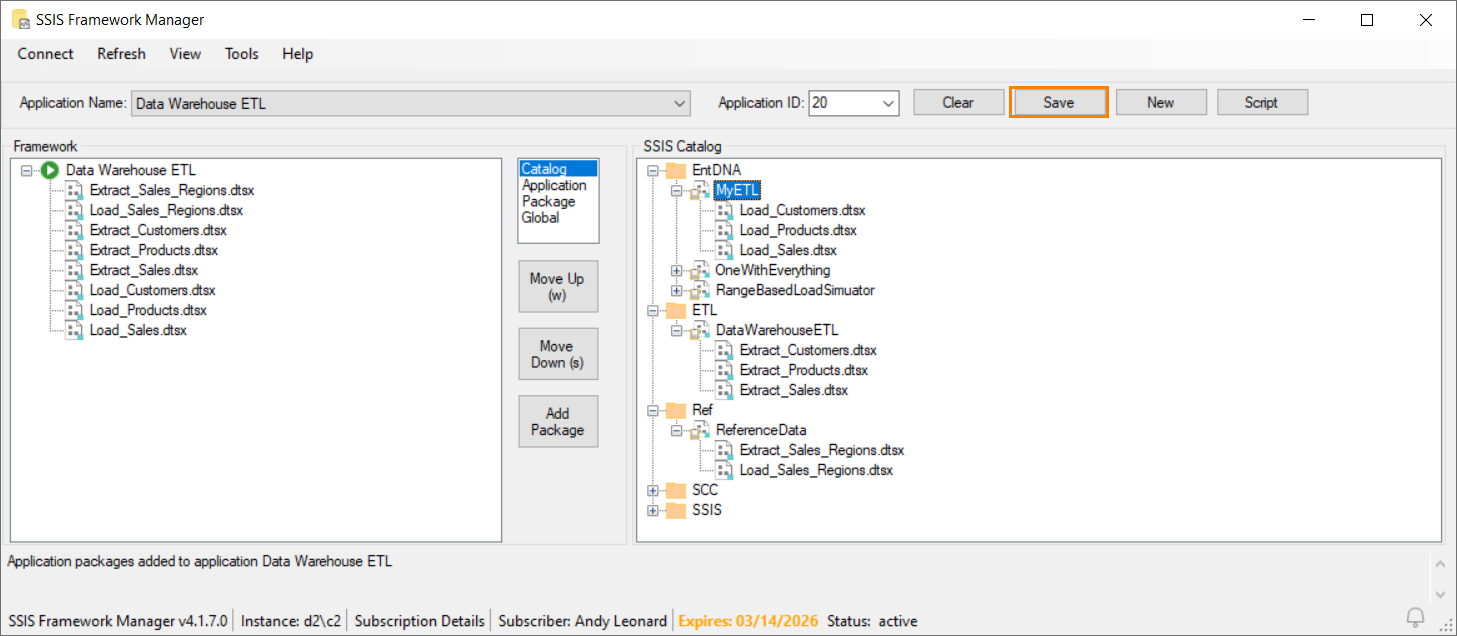
Note the SSIS application packages are added to the SSIS application in the same order they are displayed in the SSIS Project in the SSIS Catalog treeview.
Once your SSIS application has been configured, click the Save button to store the execution order of the SSIS application packages:
Order the Execution of SSIS Application Packages
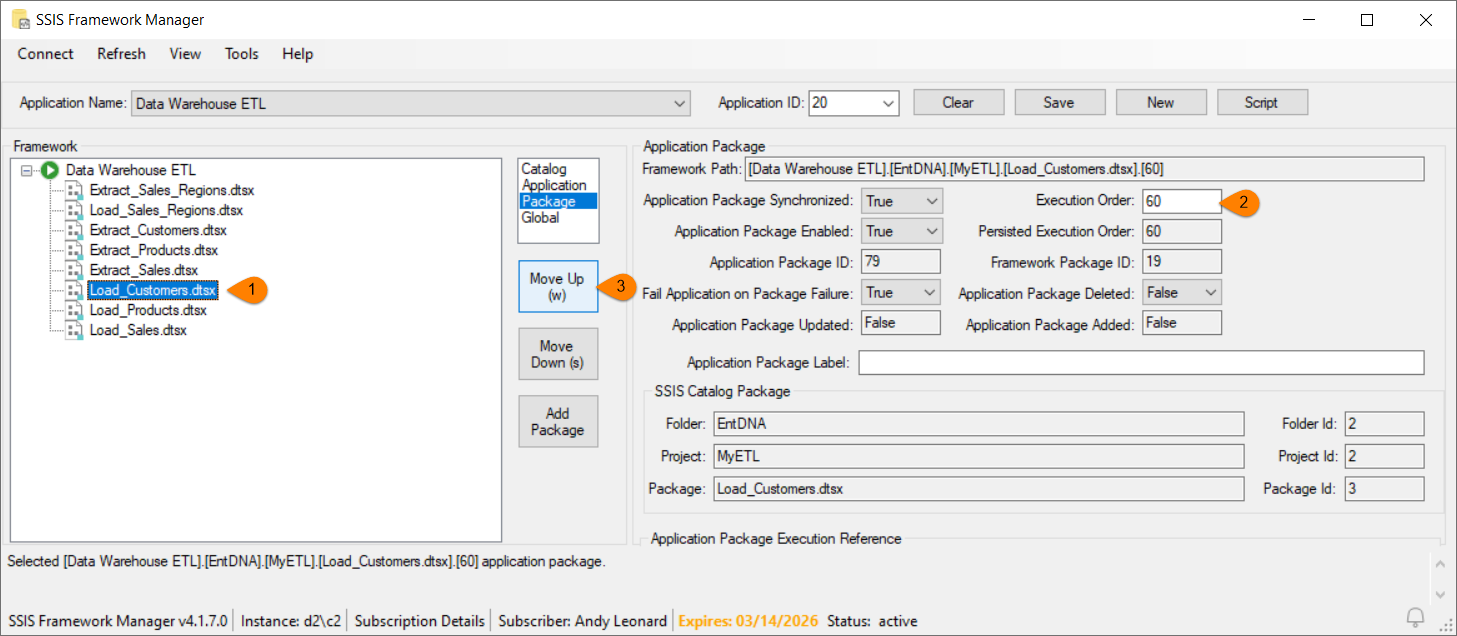
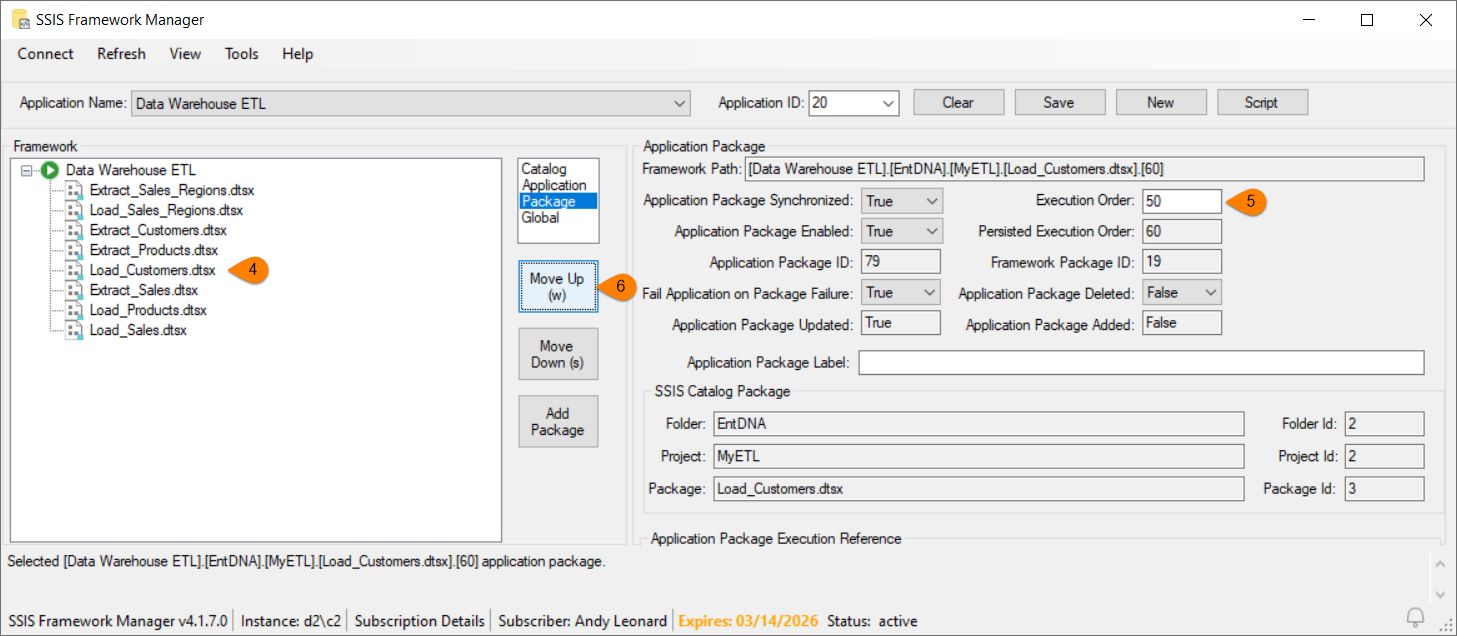
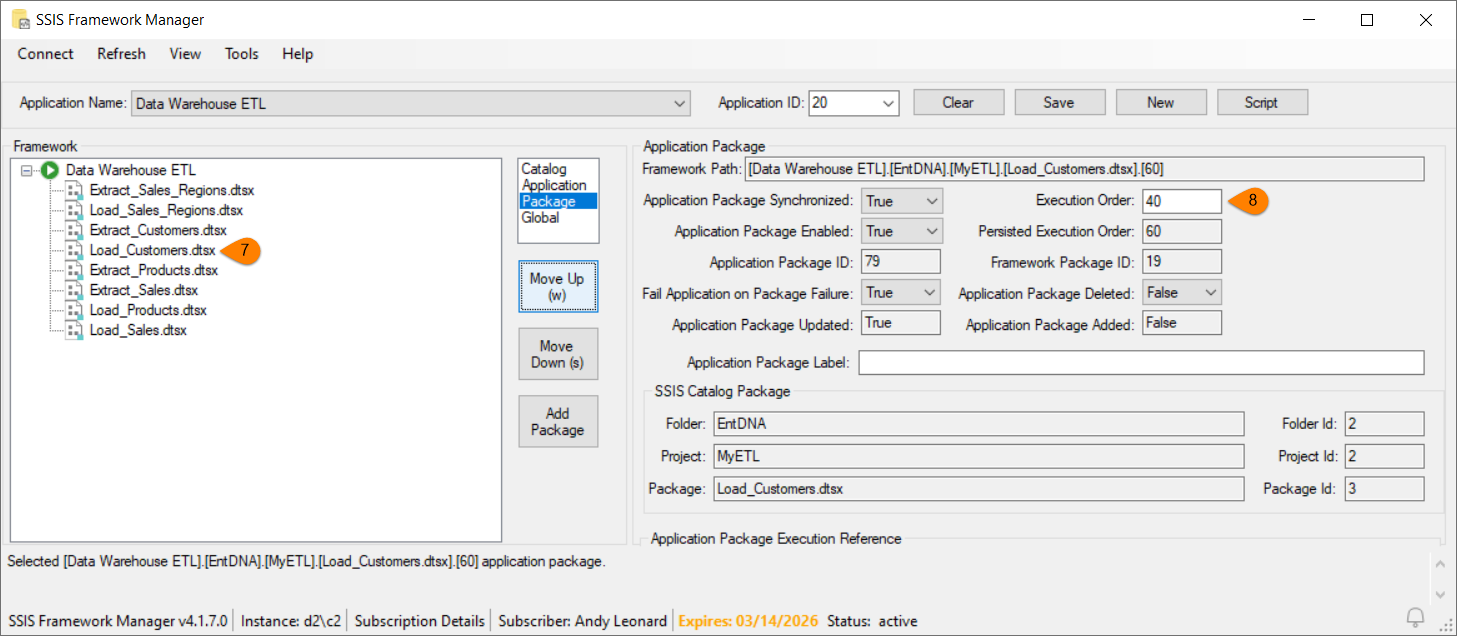
In the next three screenshots, I show how to change the order of execution for a single SSIS application package (Load_Customers.dtsx):
- In the SSIS Framework treeview, select the SSIS application package you wish to re-order
- Before you move the SSIS application package, the Execution Order is the value of the ordinal position of the application package in the list of application packages displayed in the treeview multiplied by 10
- Click one of the Move buttons (I click the Move Up button for this demo) – or hold the Alt key and press the key in parentheses, the “w” key for Move Up or the “d” key for Move Down
- The SSIS application package moves
- The Execution Order changes to reflect the new value – which remains the ordinal position of the application package in the list of application packages multiplied by 10
- Click the Move Up (or Move Down) button again (I click Move Up again) – or hold the Alt key and press the key in parentheses, the “w” key for Move Up or the “d” key for Move Down – to move the previously-selected SSIS application package again
- The SSIS application package moves
- The Execution Order changes to reflect the new Execution Order value:
Conclusion
In this post, I’ve covered how to use SSIS Framework Manager to build an SSIS Application in the DILM Suite SSIS Framework. In other posts, I cover how to configure SSIS the application and SSIS application packages.
Learn more about SSIS Framework.

Comments